




































- June 29, 2026
- Uncategorized
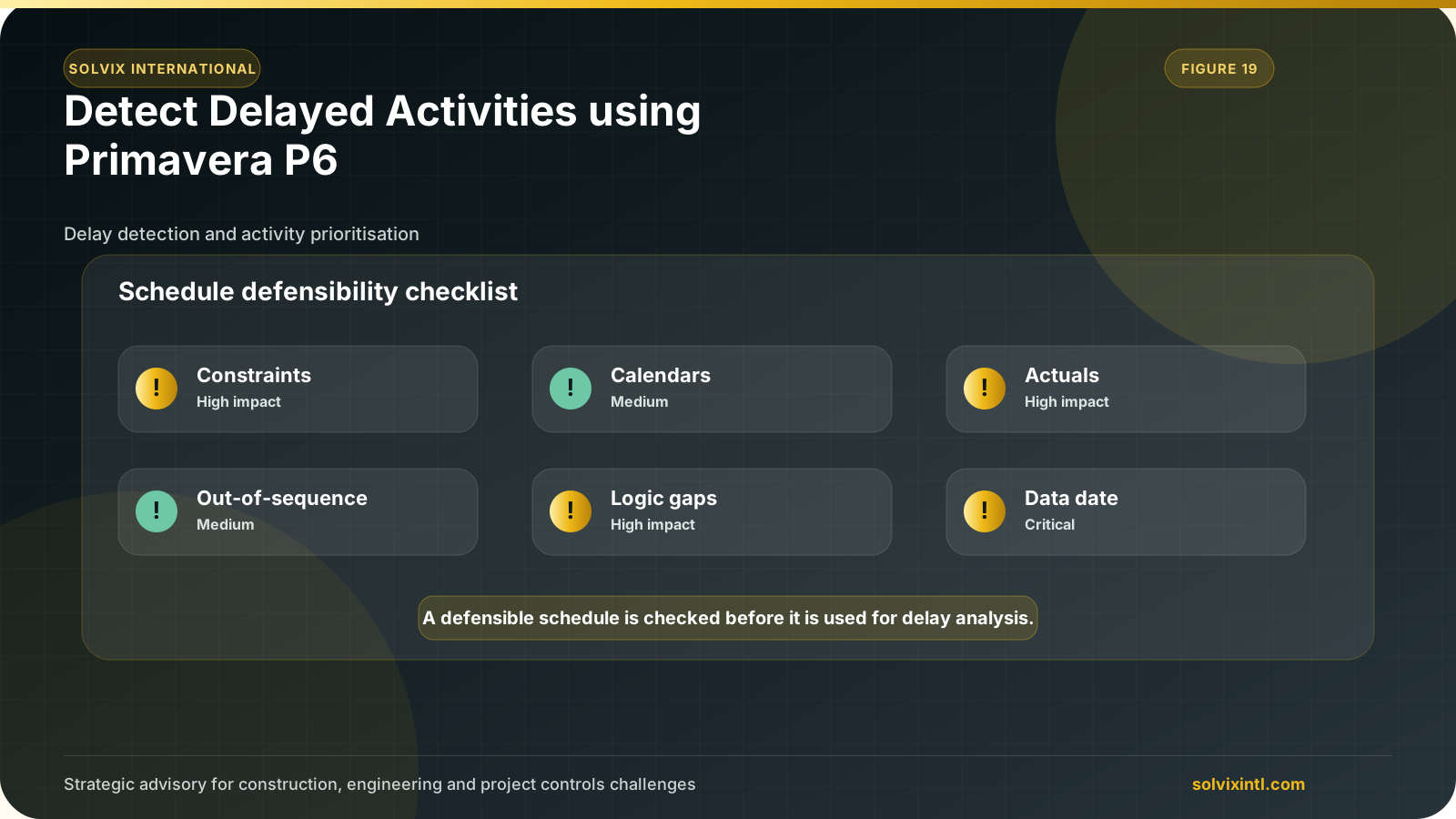
During the project lifetime, we often need to keep tracking of our actual vs planned schedule to report if we are on track, ahead or behind. While using primavera p6, calculating the delayed days can be a little tricky. Here is a simple guide so that we can detect delays and filter them so that we can have an insight about these delays and deal with them for a successful project closure.
Firstly, let us make some definitions clear:
Key Definitions
Total float: it is the maximum duration for an activity to finish without delaying the entire project. The total float is always equals zero when the activities are on the critical path which means that any possible delays will lead to a missing deadline for the project. Delays to activities that are not on the critical path and have float will not cause overall project delays. On the other hand, having these delays will be shown as a negative float. It is important to also keep an eye on them cause these non-critical paths can slip to end up having a non-critical path turned into a critical or a near critical path. Schedule % complete: it refers to the activity progress % according to the baseline schedule. performance % complete: it refers to the activity progress % according to the actual progress in site.
While keeping this in mind let us start with our guide
How to calculate delays in a project and filter them. Step 1: Set Up a Baseline Schedule
Start Primavera P6 and log in to your project management account and choose your project, here is a simple sample just to demonstrate the idea and this can be applied on large scale project schedules as well.
we will consider that you are going to do your first update on your baseline, so let us start with how to make your schedule a baseline and update it afterwards.
from project tab, choose “Maintain Baseline.”
From the shown window press on Add and choose to make the current project as a baseline, a baseline schedule will then be shown as below.
from project tab, choose “Assign Baseline.”
from the small window shown, from project baseline tab we choose our project name (the project we maintained as a baseline earlier) and then “OK.”
now we can update our schedule with the actual progress we collect from site and then compare it with the planned schedule as in baseline schedule.
Step 2: Create a User-Defined Field
since there is not an existing way to detect the delays days in P6, we will have to do and roundabout and that’s start with making a “user defined field” and to do that.
From enterprise tab choose “user defined fields”
From the small window choose “Add”, make sure the user defined filed is set to activities.
Rename the field to “Delayed activities.”
Set data type to “integer” since we want to have the data value as whole number.
Now we need to show that field in the P6 columns layout, and to do that we right click in the columns area and choose “columns.”
From the appeared window, from “User Defined” choose “Delayed activities.”
Step 3: Calculate Delays Using Global Change
Now we need to form an easy equation to calculate the delays, the logic behind the equation is that:
if we subtract the performance % complete and schedule % complete we can detect the delays
to do so we need to use “Global change” tool.
from tools tab, go down to “Global change.”
From the small show window choose “New”
From the window go down to the second partition and choose from Parameter “Delayed activities”
Next, we will need to fill the equation as following.
From parameter / value choose “performance % complete”, from operator choose “- “and from parameter / value “choose “Schedule % complete”
Change the Global change name to “Delayed activities” then press “OK.”
From the main global change menu choose “apply changes”
A log page will appear choose “commit changes.”
Step 4: Apply a Filter to View Delayed Activities
now we need to apply a filter to on see the delayed activities so it can be easily to report and track them.
The logic behind the filter is that we need to see the negative values came from the equation “performance % complete – schedule % complete” we made in the User defined column.
So, to apply the filter, we press on this small filter icon shown in the tools bar then from the small window shown choose “New.”
Change the filter name to “Delayed activities” and then from parameter tab choose “Delayed activities” this will filter apply the filter on the User defined column.
From “is” tab we choose “is less than” and then from “value” tab we choose “0”
Then press “ok.”
From the main filter menu, choose “Delayed activities” filter and press apply.
Congratulations! You will end up with this, a column including the delays and a filter only showing these delayed activities.
Need support with this topic?
Solvix provides delayed activity analysis and schedule update review services
Solvix International provides delayed activity analysis and schedule update review services as part of its project controls and scheduling support. Our team can review, build, correct, and maintain Primavera P6 schedules so project teams have reliable programme information and defensible records.

ramez.megahed.sci@gmail.com
Head of Architecture & DesignHead of Architecture & Design with over a decade of experience leading large-scale real estate and construction projects. Known for his strategic mindset and leadership excellence, he has successfully driven high-value developments from concept to completion while ensuring operational efficiency and long-term growth.