





































- June 29, 2026
- Uncategorized
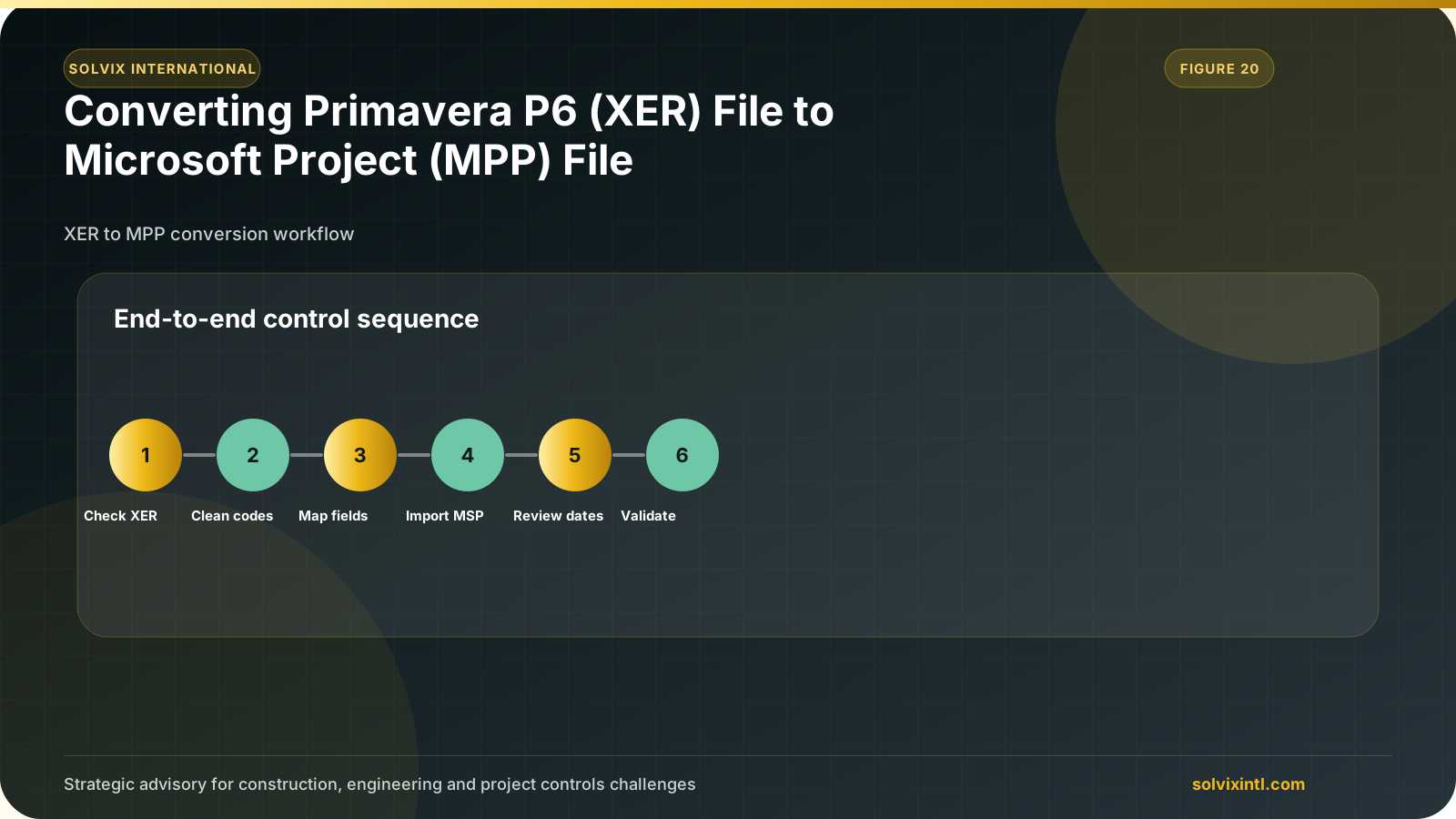
In today’s world efficient project management is the rock of success in any project, but it has always been a challenge to transfer data across multiple platforms. Especially when using different specialized software tools. in the planning and scheduling field, there are two main tools used worldwide, P6 Professional and Microsoft Project. They are used to plan project execution from start to finish and track progress.
While both are widely used they operate on different file formats Primavera P6 uses XER format while Microsoft Project relies on MPP format which makes sharing data across platforms is not a smooth process.
The need to convert XER files to MPP format occurs when project teams across different departments or organizations work on the same project while using different tools, here’s where efficient data transfer is crucial to minimize risk of data loss, miscommunication that leads to project delays, budget overrun and reduced project efficiency.
In this article, we will walk through how to convert Primavera P6 XER file into Microsoft Project MPP format step by step ensuring seamless project data transfer without any data loss. We will also discuss challenges during this conversion process.
Difference between Primavera P6 and Microsoft project
Before walking process, let us understand the potentials of each tool. Primavera P6 is famous for its ability to manage large, complex projects especially in industries like construction as it offers advanced scheduling, resource and cost allocation and progress tracking features. But it is somehow more difficult to deal with and needs training. On the other hand, Microsoft Project is easier to deal with and integrates well with Microsoft office applications. Which makes flexible tool, so it is often used by a wider range of industries. It is used for smaller to medium sized projects with less complexity.
Even though they are the most used tools in project management, they do not have the option to directly exchange data, so project need a conversion process ensuring that the important project data such as WBS, Activities and resources are kept safe. This gives the project team the ability to use whatever tool they prefer without compromising data integrity or collaboration quality.
Step-by-Step Process of Converting XER file to Microsoft Project MPP format
STEP (1)
To process, you will need to export the project file. To do so open Primavera P6 then open the project you want to export as MPP file.
menu “Export” option. In the window that choose “Microsoft Project.”
You will then need to Project version that you are using on your device then click “Next.”
STEP (2)
Once you have version, choose file location, and click “Next.”
STEP (3)
This step is important for ensuring that the data from XER file is interpreted correctly by Microsoft Project, this step is known as MSP Mapping.
MSP Mapping how each piece of data file corresponds to data fields in MPP format.
You can map data yourself like WBS, activities and resources however it is done automatically you can just check and ensure data are transferred correctly.
However, if a user-defined data is included in your project, you will need to perform custom field mapping. This ensures that all relevant project data is accurately transferred.
Click on “Custom Field Mapping” and Select Subject Area then field and the MSP field and click “OK.”
STEP (4)
After checking the data mapping, proceed by clicking “Next.” An export confirmation window will appear. Now click “Finish,” and you will be shown a progress window viewing the status of the export process.
STEP (5)
After the project has been exported as an XML file, now it is time to import Project. To do MS Project and choose menu “Open.”
By default, you will not see the XML file that you saved earlier, so you will need to select “XML format” from the drop-down list found next to file name and your file will appear.
Once the file appears, select it then click “Open.”
STEP (6)
In this step you have three options to import:
As a new project: this option data from your file as a completely new project.
Append the data to the active project: this option data and it to a currently open project, expanding its task list, resources, etc.
Merge the data into the active project: this option merges overlapping data from the imported file with the current project data, updating or replacing data that are already there. If you want to update or replace data in a current project, this option is to choose.
After choosing the suitable option, click “Finish.” The XER data will now appear in Microsoft Project
Here in just a few steps, you can view your project Microsoft Project along with all its data.
Challenges during data conversion process
One of the most significant challenges when converting XER files to MPP format is the potential loss of some project details that are related to advanced primavera schedule such as advanced scheduling algorithms and resource leveling techniques in complex projects that can lead to inconsistencies in activities, resources and schedules as these advanced features may not be fully supported in Microsoft Project. So careful attention process is necessary and after importing into Microsoft Project to minimize data loss.
Need support with this topic?
Solvix provides schedule file conversion and programme coordination services

ramez.megahed.sci@gmail.com
Head of Architecture & DesignHead of Architecture & Design with over a decade of experience leading large-scale real estate and construction projects. Known for his strategic mindset and leadership excellence, he has successfully driven high-value developments from concept to completion while ensuring operational efficiency and long-term growth.