

































- June 29, 2026
- Uncategorized
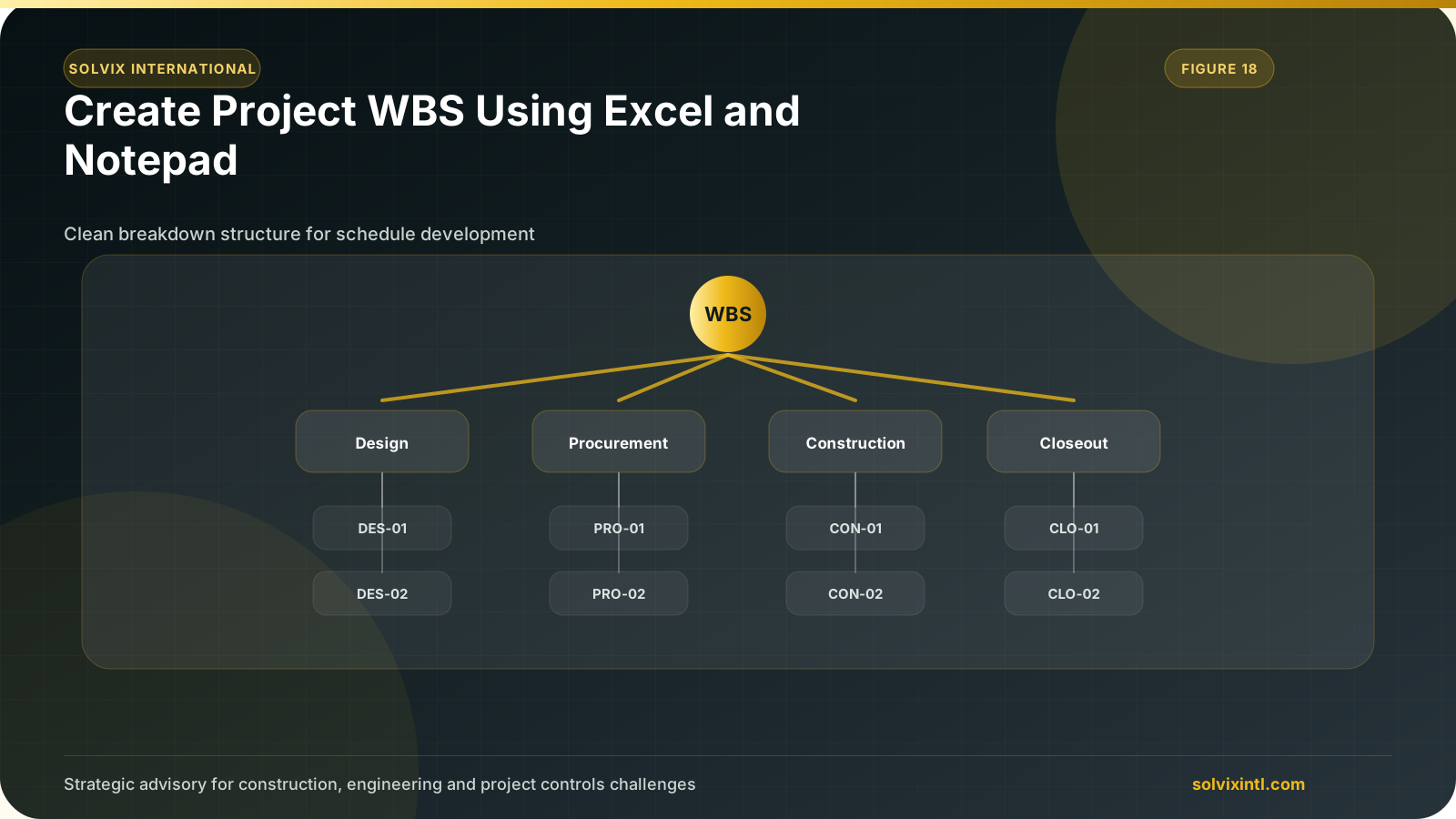
Introduction
Primavera is one of the strongest tools in planning, it has an easy and simple interface that anyone can use and make his own schedule, recently it became very urgent to finish the scheduling process in the minimum possible time specially in mega projects, a manual way can be used to add WBS and activities but it can be very time consuming if we are facing a large number of WBS but no worries here is a way of making things faster and easier, all we need is Excel and the windows notepad.
How to Add WBS in Primavera P6 Using Excel and Notepad Step 1:
Start Primavera P6 and log in to your project management account. After creating a project, (here I made a new one), go to Project tab then choose WBS
Adding a project will be as the following: Enterprise then from the menu choose project, on the right most side press the (+) to add a new project
we need to add a new WBS that we use later on, to do this follow this sequence project then WBS and finish the helping wizard.
After completing the helping wizard, you will end up with a situation like this
Now we need to export this project in form of XER File
Choose the P6 version that you want to export to
we will need to export the entire project, so we will need to choose Project
choose the project name and tick the box under Export
choose the export file location and press finish.
Step 2:
After finishing with exporting, go to the location where the exported XER is saved and then right-click on the file and open it with Notepad
When the Notepad is opened, scroll down till you get to the highlighted part and then copy it.
Step 3:
Open a New Excel sheet that will be used to add the WBS names, ID and parent ID We then need to paste the copied data from the note pad to the excel.
But first, we need to keep the following in mind:
WBS ID: A unique number identifying each WBS element.
WBS Name: A description indicating each WBS element.
Parent WBS Code: Identifies the parent element for hierarchical relationships.
Adding your new WBS data will be as the following:
We add %R as we go and the last value in the column should be %E
This column related to the WBS ID, Add the WBS ID as you need, but don’t change the first 2 values
These are some fixed values related to how P6 identify the project relating to the project ID, the OBS and Enterprise that project exists under, you need to keep them as they are, so just copy & paste them as you go
Add these values in sequence starting from the 2nd value in the column and stop the sequence with the last WBS you add
Here you can add the short name for the WBS
Here you can add the name for the WBS
The remaining values are also fixed so you can just copy and paste them
Here you can add the parent WBS ID for the WBS you want to form the hierarchy, notice that the first ID is always the project ID so keep it.
Review the entered WBS hierarchy for accuracy and make necessary adjustments or refinements to ensure alignment with project requirements.
Finally, after checking that everything is right in place, select and copy all the table after filling it with the values and paste them in the note pad again replacing the part the was highlighted in the previous screenshots.
Step 3:
Import the XER file to the P6, so choose the XER file format.
Choose the XER directory and select the XER file
we need to use the XER file as an update to the one already existing in P6, so let it update the existing project by choosing “update existing Project” from import action tab Finally, after completing the helping wizard, congratulations! you will end up with this:
Need support with this topic?
Solvix provides WBS development and Primavera P6 setup services

ramez.megahed.sci@gmail.com
Head of Architecture & DesignHead of Architecture & Design with over a decade of experience leading large-scale real estate and construction projects. Known for his strategic mindset and leadership excellence, he has successfully driven high-value developments from concept to completion while ensuring operational efficiency and long-term growth.